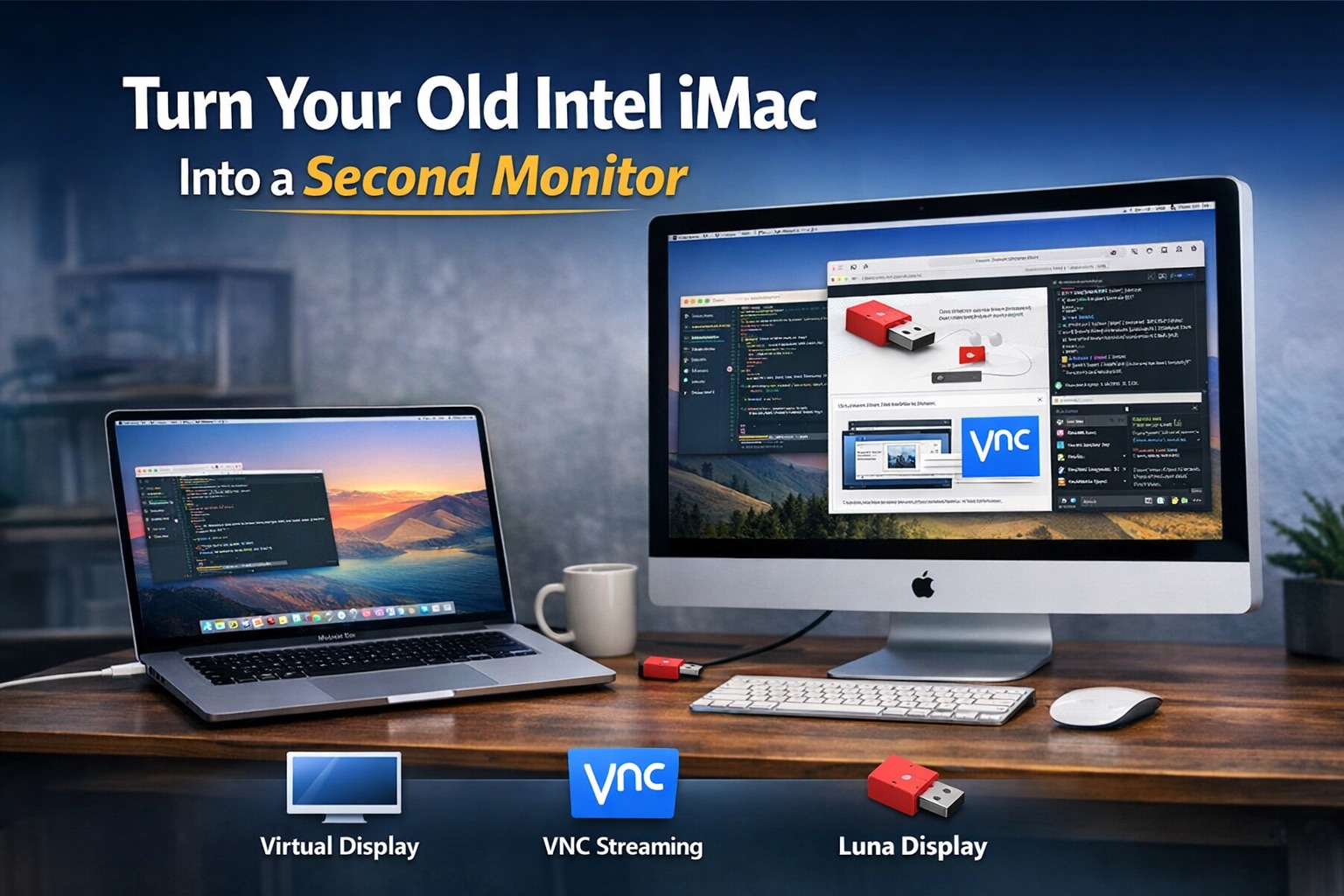
Apple killed Target Display Mode after the 2014 iMac. If you own a 2015 or later Intel iMac that’s gathering dust, there’s no built-in way to plug it in as a dumb monitor for another computer. But the hardware is still perfectly good — that 27-inch 5K Retina panel isn’t something you just throw away.
Here’s how I turned my 2020 iMac 27″ 5K into a second display for both a Mac and a Windows PC, using only software and a cable or two.
Using the iMac as a Second Monitor for a Mac
The trick is a combination of a virtual display on the new Mac and VNC from the old iMac.
Step 1: Create a Virtual Display on the New Mac
Install BetterDisplay on the new Mac. It’s free for basic features; creating virtual screens is included. Open the app, go to Settings > Displays > Overview, and click “Create New Virtual Screen.” Choose a resolution that the old iMac supports natively — for a 27″ 5K iMac, you’ll want 5120×2880 if your network can handle it, or something more modest like 2560×1440 if it can’t.
Once the virtual display is created and connected, go to System Settings > Displays on the new Mac. You’ll see the virtual display listed alongside your physical ones. Arrange it so its position matches where the old iMac physically sits on your desk — left, right, above, whatever your setup is. This way your cursor moves naturally between screens.
- BetterDisplay Pro ($22, one-time) unlocks flexible HiDPI scaling and EDID overrides — useful if the virtual display doesn’t render at the expected sharpness
- The free tier is sufficient for creating and connecting virtual screens
Step 2: Connect from the Old iMac via Screen Sharing
On the old iMac, open Screen Sharing (built into macOS, find it via Spotlight or under /System/Library/CoreServices/Applications/). Connect to the new Mac’s IP address. When prompted, select only the virtual display — not the new Mac’s main screen. The old iMac now mirrors that virtual display at full resolution.
Making It Faster
Out of the box, this will work but feel sluggish. Apple’s Screen Sharing uses an older VNC protocol that isn’t optimized for high-resolution, low-latency streaming. Here’s what helps:
Use a direct Thunderbolt cable connection. Connect the two Macs with a Thunderbolt cable. You may need an adapter if the old iMac uses Thunderbolt 2 (Mini DisplayPort connector) and the new Mac uses Thunderbolt 3/4 (USB-C). Apple sells a Thunderbolt 3 to Thunderbolt 2 adapter for this. On the new Mac, go to System Settings > Network > Thunderbolt Bridge and note the self-assigned IP address. Use that IP in Screen Sharing on the old iMac instead of the hostname or Bonjour address. This bypasses your LAN entirely and gives you a direct point-to-point link.
Set a solid color wallpaper on the virtual display. Photos and gradients generate more pixel data that VNC has to compress and transmit. A flat single-color wallpaper reduces this overhead. It sounds trivial, but it does make a visible difference.
Replace Apple Screen Sharing with RealVNC. This is the single biggest improvement. Install RealVNC Server on the new Mac and RealVNC Viewer on the old iMac. RealVNC uses a more modern protocol with better compression and lower latency. The difference is immediately noticeable — the virtual display goes from “usable but annoying” to “actually comfortable for real work.” RealVNC requires a paid subscription.
Quick summary of the optimization stack, roughly ordered by impact:
- RealVNC instead of Apple Screen Sharing — biggest single improvement
- Thunderbolt cable — eliminates network as a bottleneck between Macs
- Solid color wallpaper — reduces pixel data per frame
- Lower virtual display resolution (e.g. 2560×1440 instead of 5120×2880) — less data to stream, at the cost of sharpness
Using the iMac as a Second Monitor for a Windows PC

The same principle applies: create a virtual display on the PC, then connect from the iMac via VNC. The tools are different.
Step 1: Install a Virtual Display Driver on the PC
Windows doesn’t natively support virtual monitors the way macOS does with BetterDisplay. You need a driver. The most straightforward option is the open-source Virtual Display Driver, based on Microsoft’s Indirect Display Driver Sample. It works on Windows 10 and 11, supports resolutions from 640×480 up to 8K, and lets you configure custom refresh rates. Download the latest release from GitHub, install it, and configure a virtual monitor at a resolution the iMac supports — 2560×1440 is a sensible choice that balances image quality and network bandwidth.
After installation, the virtual display appears in Windows Display Settings just like a physical monitor. Arrange it to match your desk layout.
- You can enable/disable the virtual display adapter in Device Manager to toggle it on and off without uninstalling
- If you use RealVNC on the PC side, note that RealVNC now ships its own Virtual Display Driver for Windows 11 (released late 2025), which can simplify the setup to a single vendor
Step 2: Run a VNC Server on the PC, Viewer on the iMac
Install a VNC server on the PC. Two options:
- UltraVNC — Free and open-source. Functional but rougher around the edges. Good enough for occasional use.
- RealVNC Server — Paid, but noticeably faster and more polished. If you’re already paying for RealVNC for the Mac-to-Mac setup, this is the obvious choice since the same subscription covers it.
On the old iMac, open either RealVNC Viewer or the built-in Screen Sharing (which speaks standard VNC) and connect to the PC’s IP address.
The Thunderbolt Problem
Unlike the Mac-to-Mac scenario, a direct Thunderbolt connection between a Mac and a Windows PC is not straightforward. Thunderbolt networking between macOS and Windows isn’t natively supported, and getting it to work requires driver-level hacking that isn’t worth the effort. You’re stuck with Ethernet or Wi-Fi for the PC setup.
For best results, use a wired Ethernet connection between both machines and the same switch. Wi-Fi adds latency and jitter that make a VNC-based display noticeably less responsive.
The Boot Camp Trick
If your old iMac has Boot Camp with Windows installed, there’s a performance angle worth mentioning: running the VNC viewer natively in Windows on the iMac (booted into Boot Camp) instead of in macOS can yield better responsiveness when connecting to a Windows PC. VNC implementations on Windows tend to be more optimized for Windows-to-Windows connections, and you skip the overhead of macOS’s VNC client layer.
The trade-off is obvious — you lose macOS on the iMac entirely while it’s in Boot Camp mode. But if the machine’s sole purpose is to be a display for your PC, it’s worth testing.
- Best case: Windows-to-Windows VNC with UltraVNC or RealVNC on both ends
- You still get the full 5K panel, just driven by a Windows VNC client instead of macOS
Alternatives: Luna Display and AirPlay
Before going the VNC route, you’ve probably seen two other approaches mentioned everywhere. They solve a slightly different problem, and both have hard limitations for older Intel iMacs.
Luna Display
Luna Display is a small hardware dongle from Astropad. You plug it into the primary Mac, install Luna’s software on both machines, and the old iMac becomes a secondary display over a proprietary low-latency protocol.
It’s different from VNC in meaningful ways: Luna uses GPU acceleration instead of screen scraping, which means smoother cursor movement and better handling of animations. It’s the closest you’ll get to a “feels like a monitor” experience without actual video input.
But it’s still not a real monitor connection. It’s still network-dependent, performance varies with network quality, and you have to buy the dongle. Compatibility with Intel iMacs exists, but older models can show degraded performance. It is not a revival of Target Display Mode — just a more optimized streaming method.
- Hardware purchase required (dongle)
- Lower latency than VNC, but still present
- Works best on newer Macs; Intel iMac support is secondary
- Not equivalent to a physical DisplayPort/HDMI connection
AirPlay to Mac
Apple introduced AirPlay to Mac in macOS Monterey. This lets one Mac wirelessly use another Mac as a display, similar in concept to Sidecar but between two Macs instead of a Mac and an iPad.
The catch is a hard compatibility cutoff: the receiving Mac must be 2018 or newer. This excludes most Intel iMacs that people actually want to repurpose — the 2015, 2016, and 2017 models that are the most common “retired” machines. A 2020 Intel iMac (like mine) does support it, but it’s a compressed stream with latency and Apple-controlled resolution scaling that you can’t fully configure.
- Receiving Mac must be 2018 or newer
- Resolution scaling controlled by Apple, not user-configurable
- Latency is generally lower than basic VNC but still present
- No hardware purchase needed
Sidecar (Not Applicable)
Sidecar only works with iPads. It does not support using a Mac as a display for another Mac. It comes up in every discussion about this topic, but it’s irrelevant for iMac reuse.
Realistic Expectations
This setup works, but it won’t feel like a native display. There will always be some latency — mouse movement, window dragging, and scrolling will have a slight delay compared to a physically connected monitor. For code editors, terminals, documentation, Slack, email, and reference material, it’s perfectly fine. For video playback, design work requiring color accuracy, or anything where frame-level responsiveness matters, it’s not a substitute for a real connection.
The old iMac’s 5K panel is still one of the best displays ever put into a consumer computer. Letting it sit powered off in a closet because Apple dropped Target Display Mode feels wasteful. This approach won’t make it feel invisible the way a real monitor input would, but it turns an otherwise retired machine back into something useful — and the 27 inches of extra screen real estate is worth the minor compromises.
Method Comparison
| Method | Hardware Required | Latency | Flexibility | Works on Older Intel iMacs |
|---|---|---|---|---|
| VNC (BetterDisplay + VNC) | No | Medium | High | Yes |
| Luna Display | Yes (dongle) | Lower | Medium | Partially |
| AirPlay to Mac | No | Lower | Low | Mostly No (2018+ only) |
If your goal is maximum reuse of older Intel iMacs (2015–2017 in particular), the VNC-based method is the only universally viable option. Luna Display is the best-performing alternative if you’re willing to buy hardware. AirPlay is limited by Apple’s device restrictions and offers the least user control.
Software Reference
| Software | Platform | Cost | Purpose |
|---|---|---|---|
| BetterDisplay | macOS (new Mac) | Free / $22 Pro | Virtual display creation |
| RealVNC Connect | macOS, Windows | Subscription | High-performance VNC |
| UltraVNC | Windows | Free | VNC server for PC |
| Virtual Display Driver | Windows 10/11 | Free (open-source) | Virtual monitor on PC |
| Apple Screen Sharing | macOS (built-in) | Free | Basic VNC client (slower) |
| Luna Display | macOS (hardware) | ~$130 (dongle) | GPU-accelerated display streaming |