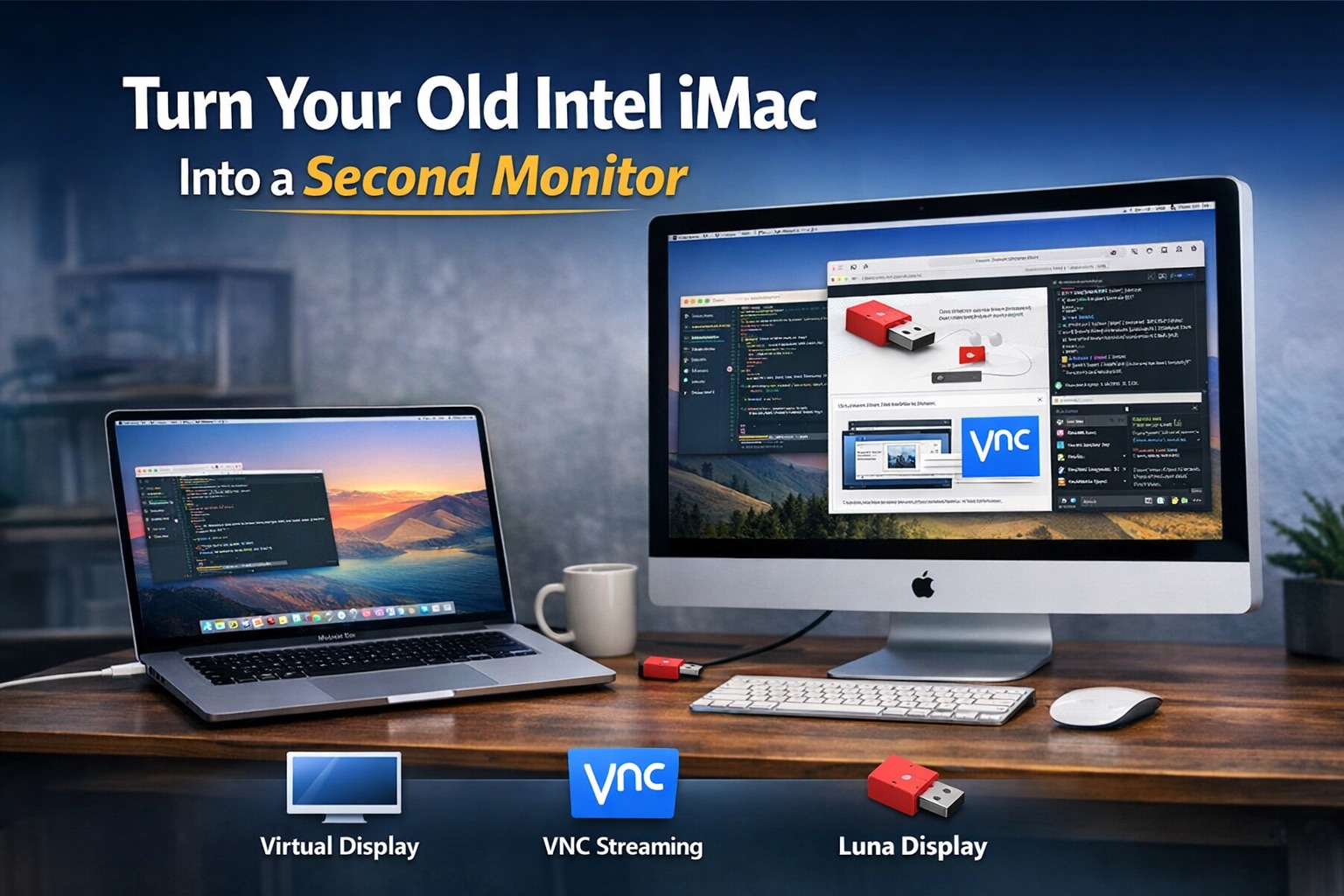
A 27-inch iMac with Retina display sitting on a wooden desk next to a modern MacBook Pro, both screens powered on.
Article
0 comment

(English) How to Use an Old Intel-Based iMac as a Second Monitor of a Modern Computer

Désolé, cet article est actuellement seulement disponible en English. Sa traduction en Français est cependant en cours. Veuillez revenir à cette page bientôt! Pour le confort de l’utilisateur, le contenu est affiché ci-dessous dans une autre langue. Vous pouvez cliquer le lien pour changer de langue active.

Désolé, cet article est actuellement seulement disponible en English. Sa traduction en Français est cependant en cours. Veuillez revenir à cette page bientôt! Pour le confort de l’utilisateur, le contenu est affiché ci-dessous dans une autre langue. Vous pouvez cliquer le lien pour changer de langue active.

Apple killed Target Display Mode after the 2014 iMac. If you own a 2015 or later Intel iMac that’s gathering dust, there’s no built-in way to plug it in as a dumb monitor for another computer. But the hardware is still perfectly good — that 27-inch 5K Retina panel isn’t something you just throw away.

Here’s how I turned my 2020 iMac 27″ 5K into a second display for both a Mac and a Windows PC, using only software and a cable or two.

Using the iMac as a Second Monitor for a Mac

The trick is a combination of a virtual display on the new Mac and VNC from the old iMac.

Step 1: Create a Virtual Display on the New Mac

Install BetterDisplay on the new Mac. It’s free for basic features; creating virtual screens is included. Open the app, go to Settings > Displays > Overview, and click « Create New Virtual Screen. » Choose a resolution that the old iMac supports natively — for a 27″ 5K iMac, you’ll want 5120×2880 if your network can handle it, or something more modest like 2560×1440 if it can’t.
[Read more]

Microsoft NTFS for Mac Screenshot
Article
0 comment

(English) How to both WRITE to and read from PC [NTFS] Drives on macOS

Désolé, cet article est actuellement seulement disponible en English. Sa traduction en Français est cependant en cours. Veuillez revenir à cette page bientôt! Pour le confort de l’utilisateur, le contenu est affiché ci-dessous dans une autre langue. Vous pouvez cliquer le lien pour changer de langue active.

Désolé, cet article est actuellement seulement disponible en English. Sa traduction en Français est cependant en cours. Veuillez revenir à cette page bientôt! Pour le confort de l’utilisateur, le contenu est affiché ci-dessous dans une autre langue. Vous pouvez cliquer le lien pour changer de langue active.

A file system is the component that allows an OS (operating system) read from and write to files on your devices storage. Every OS has its own file system, some of which are more compatible across platforms than others. For example, Mac computers used exclusively HFS+, while the current versions of Windows uses NTFS (New Technology File System). When you connect a storage device formatted in NTFS to a Mac, it is recognized and read alright, but you can’t modify it by any CRUD operation i.e. Create, Read, Update, Delete any files on it  – unless you have some 3rd party add-ons installed and configured, and you can learn about them in this article to ultimately enable Mac to write onto NTFS drives.

Although the inability to write to NTFS on the Mac might become quite an issue for Mac newbies, be them first-time computer users or switchers from PC, the solution which is was invented as early 2000s, has evolved over the years as macOS (X) has been updated. The Mac operating system formerly called OS X – last year renamed macOS – can always read & write to PC disks and hard drive volumes formatted in FAT32 – a format which is not quite used any more due to its limitations of 4 GB maximum file size and 2 TB for maximum storage volume, whereas NTFS, free of these limitations, is readable not just by Macs since day 1, but by almost all non Windows-PC systems as well. However NTFS is not writable by default outside Windows due to a restriction brought on by Microsoft. As mentioned, there already are a few 3rd party solutions and workarounds to remove this restriction.

With the release of macOS High Sierra which introduced Apple’s new file system called APFS to be used by newer SSD-based Macs replacing the legacy HFS+, bringing on the ability to write to NTFS formatted volumes has become a little more complicated. Since my article titled Ability to write to NTFS volumes on the Mac published back in 2008 has become fairly obsolete so that the suggested workaround(s) in it are now very difficult if not impossible to apply, in this new, 2018 article, I’ll be explaining some of the best solutions for the need to write to PC volumes a.k.a. NTFS drives as an assertive old-timer. I’ve been using Apple computers since 1985 and have been doing computing cross-platform computing since 1993, and have been using Bootcamp since the year it came out and cross-platform working is at the heart of most of my digital activity.

Read on to find out about free and paid solutions to be able to write to NTFS disks and other storage devices mounted on the Mac.[Read more]

Article
0 comment

Comment ouvrir facilement des images disques UIF et les convertir en format .iso sur le Mac

Désolé, cet article est actuellement seulement disponible en English et Türkçe. Sa traduction en Français est cependant en cours. Veuillez revenir à cette page bientôt! Pour le confort de l’utilisateur, le contenu est affiché ci-dessous dans la langue par défaut du site. Vous pouvez cliquer l’un des liens pour changer la langue du site en une autre langue disponible.

UIF2ISO MacPopular among Windows PC users .Uif is an alternative disk image format to others like .iso.img and .bin-.cue couples.

You can open and convert UIF disk images on Mac OS X using one of the following disk image utilities:

  1. Uif2iso which is a cross-platform command-line tool developed by Luigi Auriemma.
  2. Uif2iso4mac a GUI application by Torsten Curdt . Uif2iso4mac is built upon  Luigi Auriemma’s uif2iso command line utility with a Mac graphic user interface adding basic functionalities of a real Mac app like drag-and-drop and a menu bar i.e. choosing an image using the File > Open menu.

[Read more]

Article
0 comment

5 Applications pour Lire les fichiers CHM sur Mac

Désolé, cet article est actuellement seulement disponible en English et Türkçe. Sa traduction en Français est cependant en cours. Veuillez revenir à cette page bientôt! Pour le confort de l’utilisateur, le contenu est affiché ci-dessous dans la langue par défaut du site. Vous pouvez cliquer l’un des liens pour changer la langue du site en une autre langue disponible.

CHM stands for Compiled HTML, and it’s used by Microsoft Windows for help files, documentation, magazines and eBooks.
There are a lot of eBooks – some Mac-related – in .chm format while Mac OS X does not come with any built-in .chm viewer.

There are some 3rd party CHM file viewers for the Mac, though, and some of them are absolutely free:
[Read more]

Article
9 comments

Tout au sujet de VNC

Vnc_logo

Qu’est-ce que VNC?

VNC est un acronyme pour le «Virtual Network Computing» c’est-à-dire informatique réseau virtuel et c’est un système de partage de bureau avec une interface utilisateur graphique qui vous permettez de vous connecter à et contrôler un ordinateur à distance au-dessus d’un réseau ou de l’Internet. Grâce au protocole de RFB (mémoire tampon à distance visuel) qu’il utilise, les applications de VNC envoient les événements de clavier et de souris à un ordinateur à distance sur le réseau (ou l’Internet) dont l’écran est partagé, et il transmet par relais les mises à jour en retour.

RFB (FrameBuffer à distance) est un protocole simple et depuis fonctionne au niveau de framebuffer, il peut être utilisé sur tous les systèmes d’exploitation avec un GUI comprenant Windows, Macintosh (Mac OS X) et Linux. Bien que RFB commenca en tant qu’un protocole très simple employé par VNC et ses dérivés, il a été amélioré afin de supporter le partage de fichiers, le compactage avancé et les techniques de sécurité dans son cycle de développement.

Pourquoi VNC est utilisé et comment

Avec VNC vous pouvez afficher l’écran d’un ordinateur à distance sur votre propre ordinateur dans une fenêtre ou en mode pleine page, et en utilisant votre propres clavier et souris sur cet écran, vous pouvez contrôler cet ordinateur à distance comme si vous vous êtes assis devant lui. Toutes les actions prises sur la vue du bureau à distance sur votre ordinateur sont exécutées réellement sur l’ordinateur distant lui-même.

[Read more]