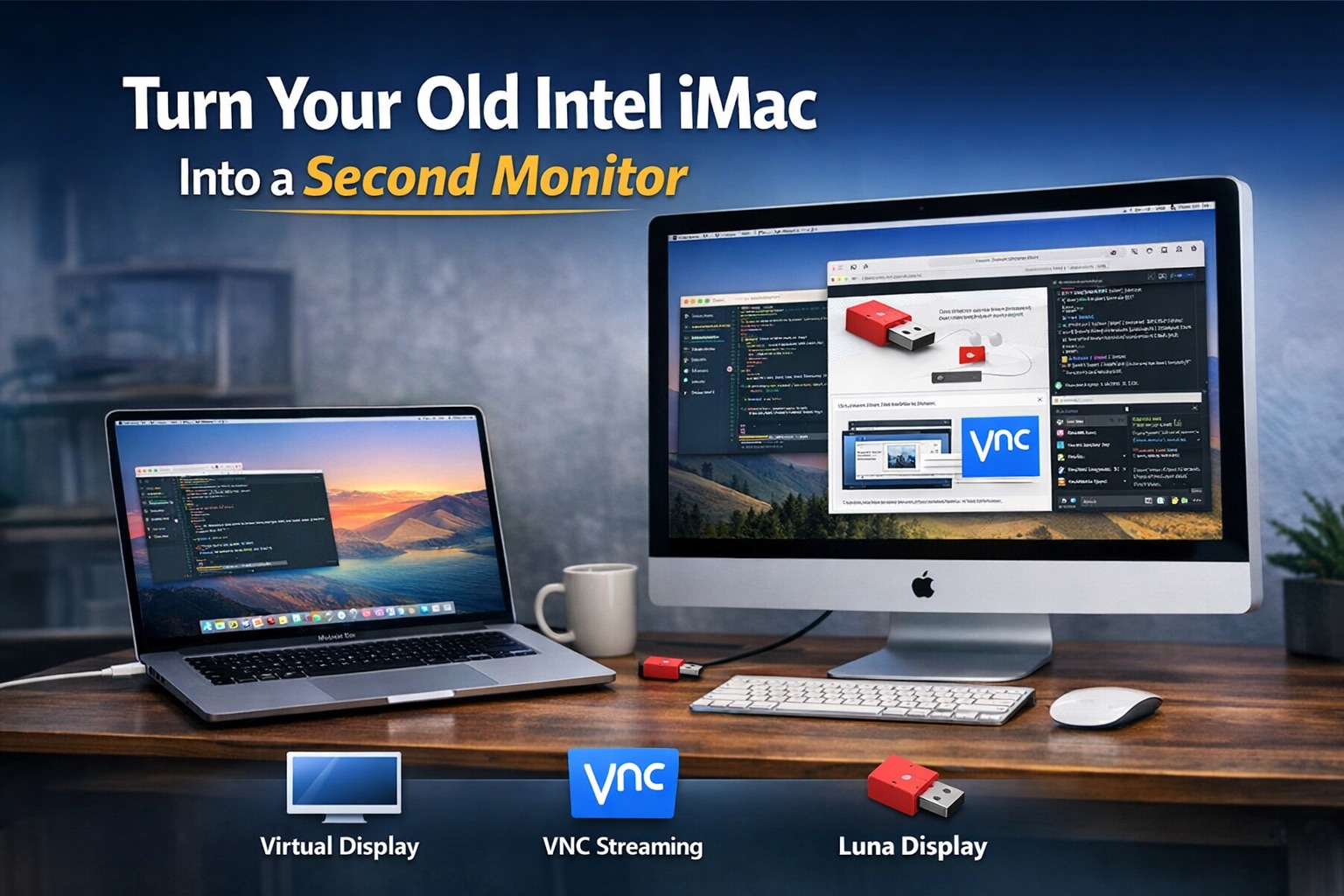
Apple killed Target Display Mode after the 2014 iMac. If you own a 2015 or later Intel iMac that’s gathering dust, there’s no built-in way to plug it in as a dumb monitor for another computer. But the hardware is still perfectly good — that 27-inch 5K Retina panel isn’t something you just throw away.
Here’s how I turned my 2020 iMac 27″ 5K into a second display for both a Mac and a Windows PC, using only software and a cable or two.
Using the iMac as a Second Monitor for a Mac
The trick is a combination of a virtual display on the new Mac and VNC from the old iMac.
Step 1: Create a Virtual Display on the New Mac
Install BetterDisplay on the new Mac. It’s free for basic features; creating virtual screens is included. Open the app, go to Settings > Displays > Overview, and click « Create New Virtual Screen. » Choose a resolution that the old iMac supports natively — for a 27″ 5K iMac, you’ll want 5120×2880 if your network can handle it, or something more modest like 2560×1440 if it can’t.
[Read more]